
System Settings v7.0.20
Every subsystem of the appliance — addressing, licensing, certificate, mail, clock, accounts, services — has a card here. A tour in on-screen order: what each card does, and when to touch it.
System → System Settings is the appliance’s control panel: one scrolling page of cards, each governing one subsystem. The tour below follows the order they appear. The data-lifecycle cards (retention, partitions, backups) have their own page, Data Maintenance, and the update cards are covered in Software Updates & OS Upgrade.
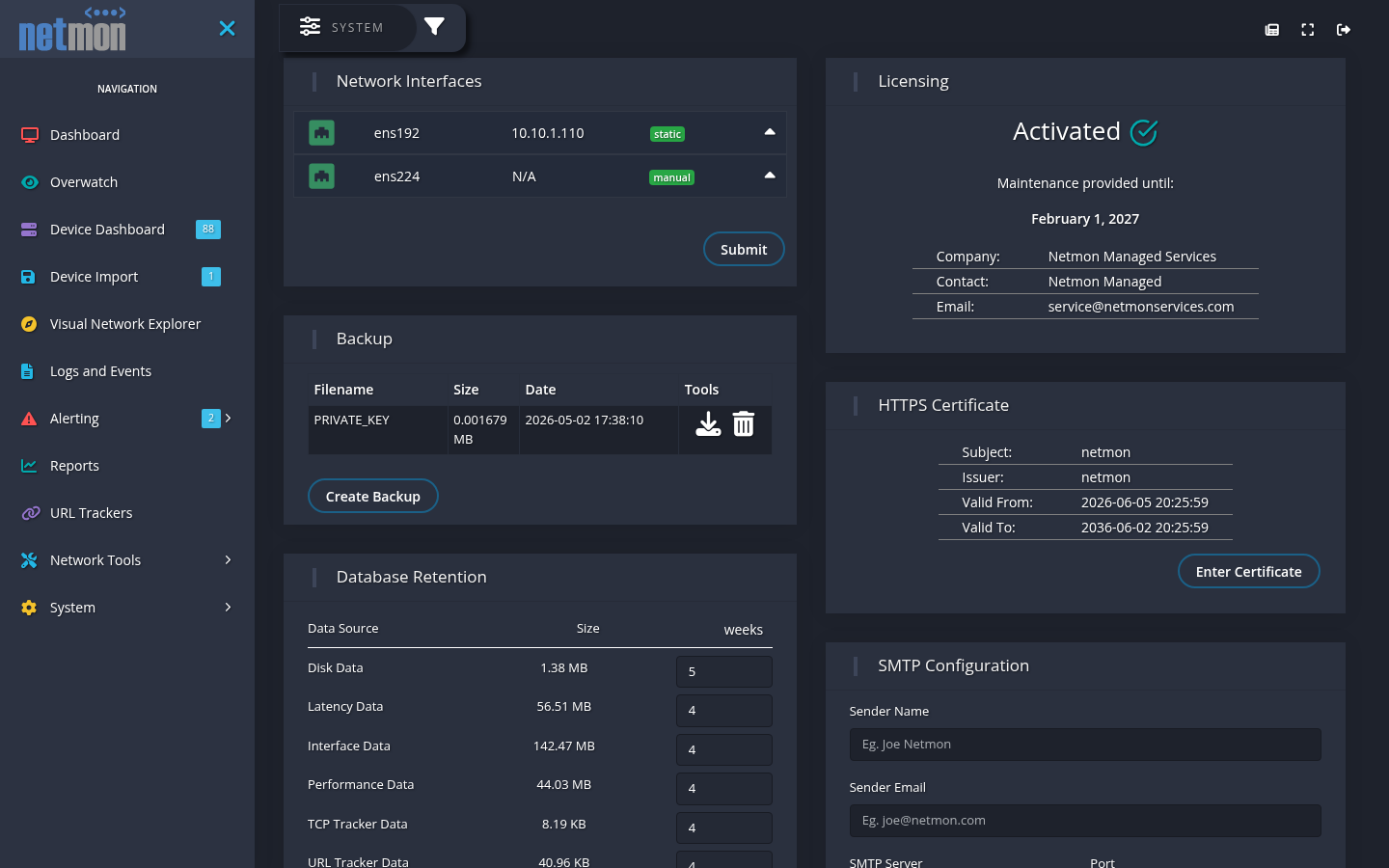
Network Interfaces
Every appliance interface — two on the SMB model, eight on the Enterprise — with its addressing (static or DHCP) and role. The Configure As selector is where an interface becomes a mirror-port receiver: set it to Sniffer (manual) and submit, and the continuous inspection engine starts reading that interface (the switch-side half of that arrangement is covered in the Cisco SPAN mirroring quick-start). These are the rare settings that can cost you contact with the appliance — apply them from a network position that survives the change, exactly as you would when renumbering a switch’s management interface.
Licensing
Activation state, company and contact on record, and the maintenance expiry date — the first thing support will ask for. Enter a new activation key here at renewal.
HTTPS Certificate
The certificate the web interface serves, with its subject, issuer, and validity window. Replace the factory self-signed certificate with one from your CA: paste or upload the certificate and key, apply, and reconnect. The browser-warning habit this removes is worth more than the fifteen minutes it costs.
SMTP Configuration
Sender identity and mail-server settings for everything the appliance emails — alert messages first among them. Use the test send after any change: alerting silently starved of SMTP is the classic “why didn’t we get paged?” root cause.
Time Configuration
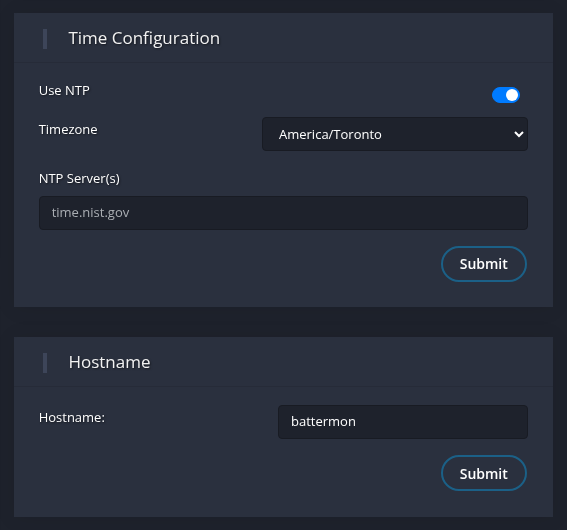
The appliance’s clock underlies every timestamp it records — log lines, graphs, the times on alerts — so keeping it correct matters more here than on an ordinary server. Run the clock from NTP (give it one or more time servers and a timezone) or, where no time source is reachable, set the date, time, and zone by hand. Prefer NTP: an appliance whose clock drifts makes every correlation across devices harder.
Hostname
The appliance’s hostname — netmon from the factory — is set here. It is the name the appliance announces for https://<hostname>.local discovery (see Installation & First Sign-In), so changing it changes that address.
Users and Permissions
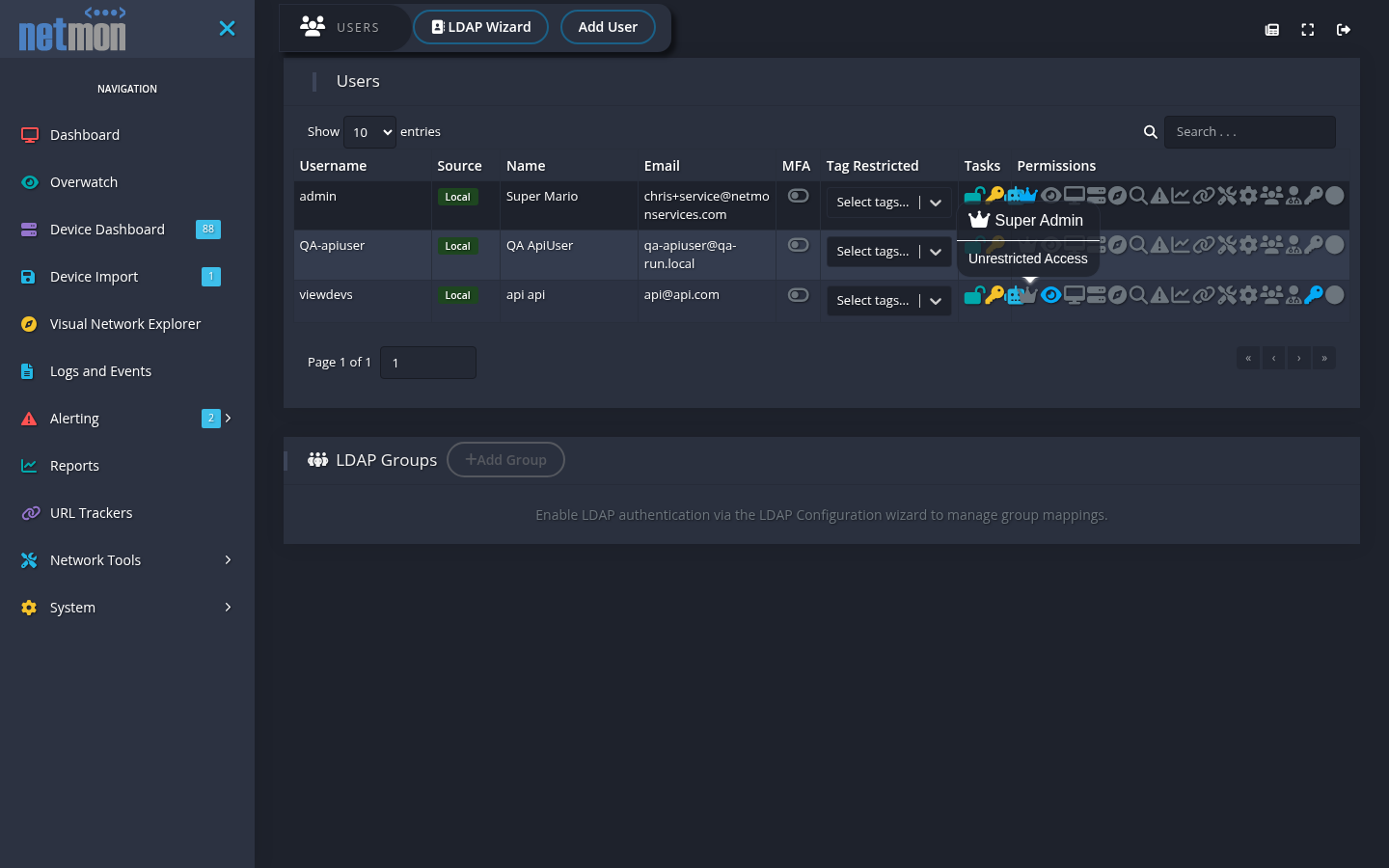
User accounts live on the separate System → Users and Permissions page (its own sidebar item, not a card on this page): create accounts, assign permission areas (the complete area-by-area reference is the Permissions Reference), restrict accounts to tags where appropriate, and disable accounts on departure.
Directory sign-in (LDAP / Active Directory)
For organizations with a directory, Netmon authenticates against LDAP / Active Directory so administrators sign in with the credentials they already have. The integration is configured by an administrator and maps directory groups onto Netmon roles: membership in a given group grants a set of permission areas, and groups can likewise map onto tag restrictions — so “the Branch-12 techs group sees Branch 12” is expressed once, in the directory you already maintain. Nested group membership is honored, so granting through your existing group hierarchy works without flattening it.
Two practices keep directory sign-in trouble-free:
- Keep one local administrative account (the factory
admin, with its rotated password in the safe). If the directory is unreachable — which is exactly the kind of outage Netmon is watching for — local sign-in is the way in. - Let the directory do the offboarding. When access is group-governed, removing a departed colleague from the group ends their Netmon access with it.
System Terminal
System → System Terminal opens a browser-based command-line session on the appliance, for the occasions support work needs the command line. It is gated by the System Settings permission — it is appliance administration, not a network diagnostic. (Changing the SSH/terminal password from here is covered in Installation & First Sign-In.)
Services
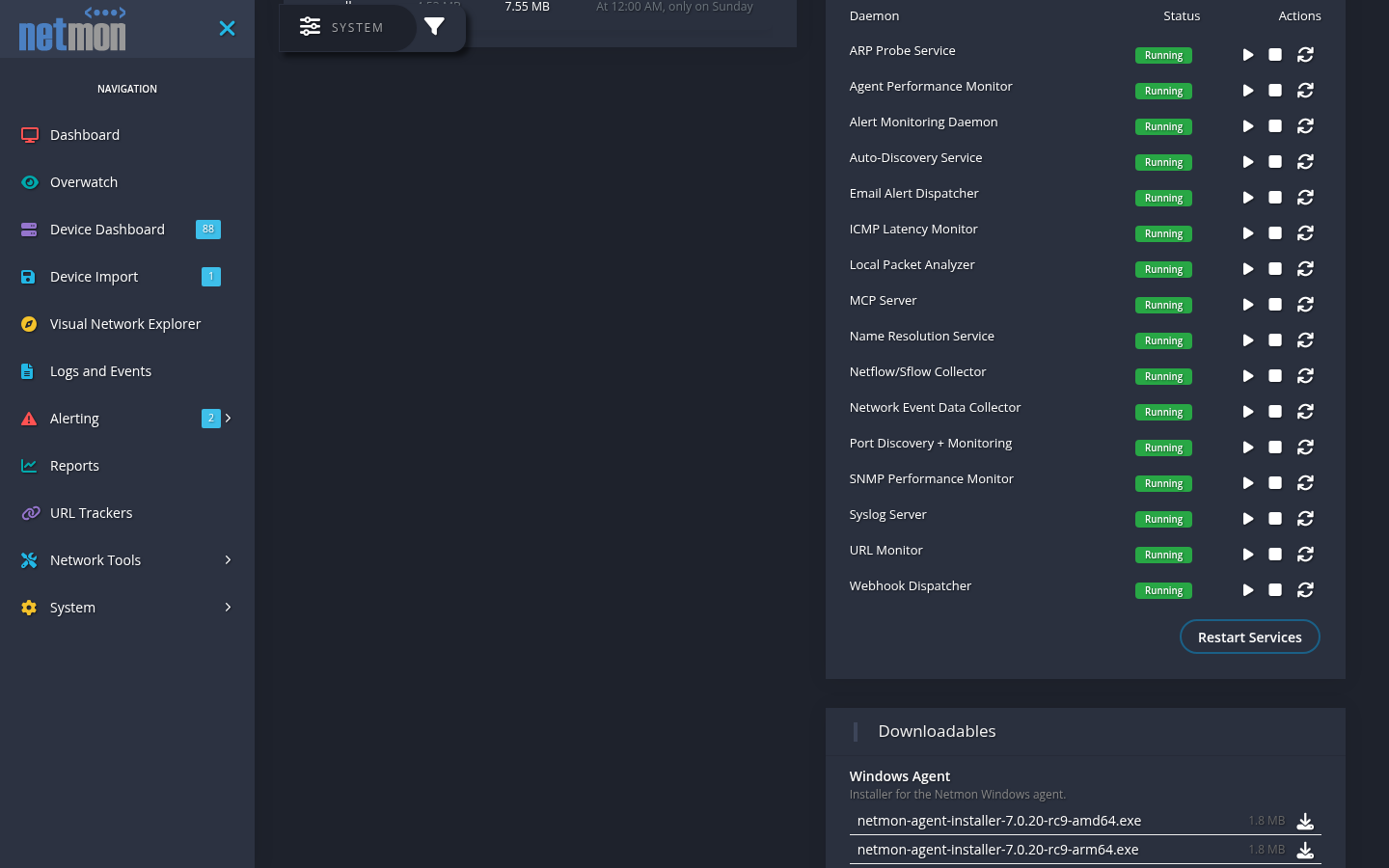
Every monitoring service on the appliance, by plain name — SNMP Performance Monitor, Syslog Server, Email Alert Dispatcher, and the rest — with live status and per-service restart controls, plus a Restart Services for the fleet. In normal operation everything reads Running and you never touch this card. When something misbehaves, it is the first stop: confirm every service is Running, restart what is not, and if a service will not stay up, that is the fact to lead with when contacting support.
Each service also has a Configure button opening its settings — the intervals, ports, and limits that service works to. The defaults suit almost every installation, and most of these are settings you will never need; they are here for the sites that do. Three worth knowing about:
- SNMP Performance Monitor → Discover IPv6 neighbours. Reads the modern IP-MIB neighbour table in addition to the legacy ARP table; it is the only source of IPv6 neighbours. Devices that do not support it are detected after a few empty polls and skipped, so leaving it on costs nothing on an IPv4-only network.
- Netflow/Sflow Collector → Resolve IPv6 flow endpoints. Sends IPv6 addresses seen in flows to the name resolver. Turning it off affects naming only — IPv6 flows are still recorded either way. Reach for it if an exporter’s IPv6 address churn floods the resolver.
- Port Discovery + Monitoring → Retire discovered port after N misses. How many consecutive sweeps a discovered port must be absent before its entry is retired. Ports you monitor deliberately are never retired.
A changed setting takes effect on the affected service, not the whole fleet. If a service is mid-cycle, allow one interval before judging the result.
System Health
A one-click self-check of the appliance itself, grouped into four sections — Scheduled Maintenance, Storage, Alert Delivery, and Platform — each with an OK / Warning / Critical badge and a plain-language line per check. It answers what a green Running badge on the Services card cannot: not “is the process alive?” but “is the work actually getting done?”
Between them the four groups cover the scheduled database maintenance (partition rotation and the retention janitors), free space on the appliance’s data filesystem, the age of the last backup and the size of the archived log partitions, alert email and webhook queues that are backing up or a global suppression window quietly swallowing notifications, and platform facts — database connections, certificate and license expiry, clock synchronization, and whether each enabled monitoring method (SNMP, ping, agent, NetFlow, syslog) has actually written data recently. Methods you have not configured are skipped rather than flagged.
The card does not poll. It takes a snapshot when the page loads, stamps it with the time, and takes a fresh one when you click the refresh icon in its header — a health card that nags continuously trains itself into the background. Anything Critical opens itself. Where a check can point you at the fix it does: Show me scrolls to the card that owns the setting and flashes it, and alert-delivery checks link into Alert Manager.
One repair is offered on the card. If a package upgrade is interrupted part-way, every scheduled database job can be left switched off — nothing rotates, nothing is pruned, and the log tables grow without bound. That reads as All N scheduled jobs are disabled; the button beside it turns them back on (click once to arm, again within fifteen seconds to confirm).
Downloadables
The client artifacts and guides your appliance distributes, versioned with the software: Windows agent installers (per architecture), the Wireshark plugin, the Product Guide PDF, and the API Reference PDF. Always fetch these from the appliance rather than old copies on a share — what is staged here matches the appliance’s installed version.